Smart Home with openHAB 2
This post will guide you through the openHAB 2 installation process. I will tell you what kind of hardware is needed and recommend possible hardware components like a Synology Diskstation, a Raspberry PI Starter Kit and different Windows 10 alternatives. If you would like to use your Synology Diskstation or a Raspberry Pi there are different packages that will make your life easy. The windows installation is not the hard to do. And still the easiest way to geht your smart home with openHAB 2 working. I will tell you how to set up windows with Java and what settings are needed. So you are ready to start your smart home using the new openHAB release. Enjoy!
openHAB 2 Installation – Hardware
In the beginning you have to choose one hardware technology that will support openHAB 2. The good thing about openHAB 2 is, that you may use any hardware that supports Java and has enough power to manage the openHAB Server. So you may choose any hardware, but what are good openHAB 2 Hardware alternatives. I will tell you in the following chapters.
openHAB 2 Installation – Hardware- Synology Diskstation
openHAB 2 Installation can be done on some Synology DiskStations. The main aspect is, that it has to support Java. If the chipset does not support Java your openHAB 2 installation will not work.
But first of all I would like to answer the question: Who should decide to choose an openHAB 2 installation on an NAS? Of course anyone who already owns a correct version of a Synology DiskStation. But also if you do not own a NAS it could be good to invest some money. I use my Synology DiskStation to record my PVR streams of a Enigma 2 box, a shared music and photo library is included and there is a surveillance station integrated. Furthermore you could do set up a raid with a 2Bay NAS. At the beginning of 2016 one of my disks failed and hell yeah, I have been so happy to restore all my data.
If you do not need any of those feature go to the next chapter. If you love those features, I recommend the following Synology DiskStations, that work with openHAB 2:
openHAB 2 Installation – Hardware- Raspberry Pi
It is possible to install openHAB 2 on a Raspberry Pi. First at the beginning it was too hard for me, because I am no Unix guy. But in the meanwhile Thomas from the openHAB community created openHABian a real easy way to install openHAB on a RPi. I also wrote an post about how to set it up. If you would like to use your RPi, please follow Smart Home – openHAB 2 Raspberry Pi Installation and Configuration. It is a bit more work, but if you would like to use Z-Wave it is working even better than under Windows 10.
If you do not have a Raspberry Pi, you may choose the following starter kit.
openHAB 2 Installation – Hardware – Windows Rechner
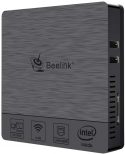
I have installed openHAB 2 first of all on the following device.
openHAB 2 Installation – Software
openHAB 2 Installation – Synolgy Diskstation
If you decided to install openHAB 2 on a Synology Diskstation, you should follow these two steps:
- Install Java on your Synology DiskStation. The download of the latest Release should be at the end of the page.
- Also Download the JAVA SE file and put it in the public folder
- Follow the guide on the official openHAB 2 page.
Please see also our YouTube Video:
Smart Home - openHAB 2 Synology Tutorial
openHAB 2 Installation – Raspberry Pi
As already mentioned the installation got a lot easier because of a installation package. I did it myself and it is really easy. You may follow the guide in the post Smart Home – openHAB 2 Raspberry Pi Installation and Configuration.
openHAB 2 Installation – Windows
The openHAB 2 Windows Installation pretty simple.
- First of all install the Java Development Kit (JDK)
- Next download the openHAB 2 files. OpenHAB 2 is at the top of the download page. There are two files, that are important. Download the Runtime Distribution. Unpack the files in the folder C:\openHAB2.
- If you would like to use a cloudless set-up, download the Addons (openhab-addons-2.0.0.kar). Copy the file to C:\openHAB2\Addons.
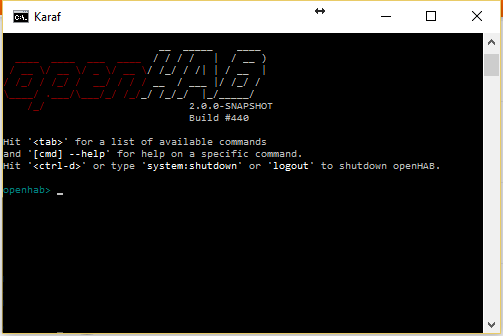
- That’s all. You may now start openHAB with a double click on the start.bat. If you get any error messages, it might be because of missing system environment variables. Open your windows search field and type “environment variables”. You should open that entry to change your variables. This will be done in the next screen. In the lower area click on environment variables and add the variable JAVA_HOME. The value will be the installation path of Java (Step 1).
If everything is correct, the following screen will show.
openHAB 2 Installation – Configuration
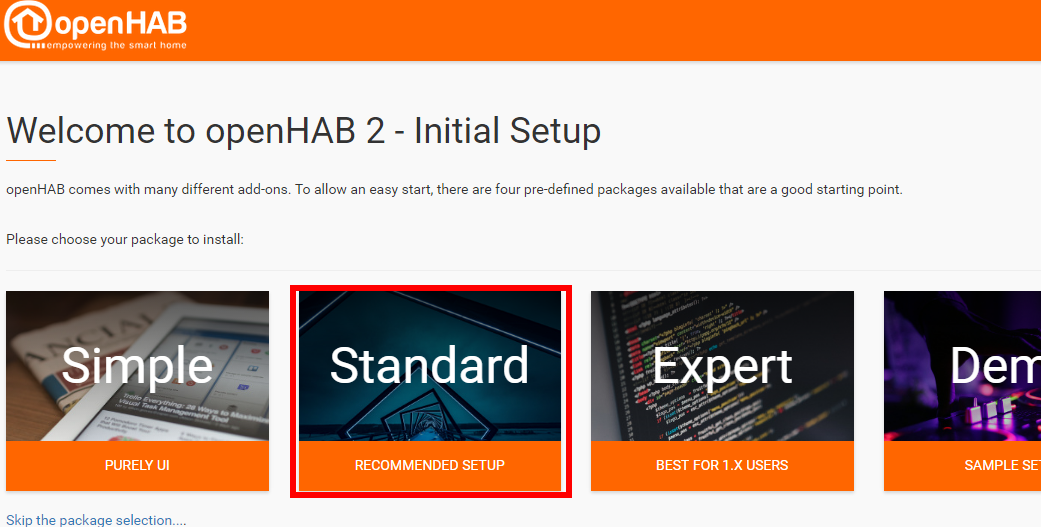
Now your are able to open the openHAB 2 PaperUI. If you are running openHAB 2 on the same computer, put in “localhost:8080” otherwise replace localhost with the IP Address of the openHAB 2 computer.
In the first you should choose Standard Setup.
After a few moments you will see the following screen. Choose Paper UI.
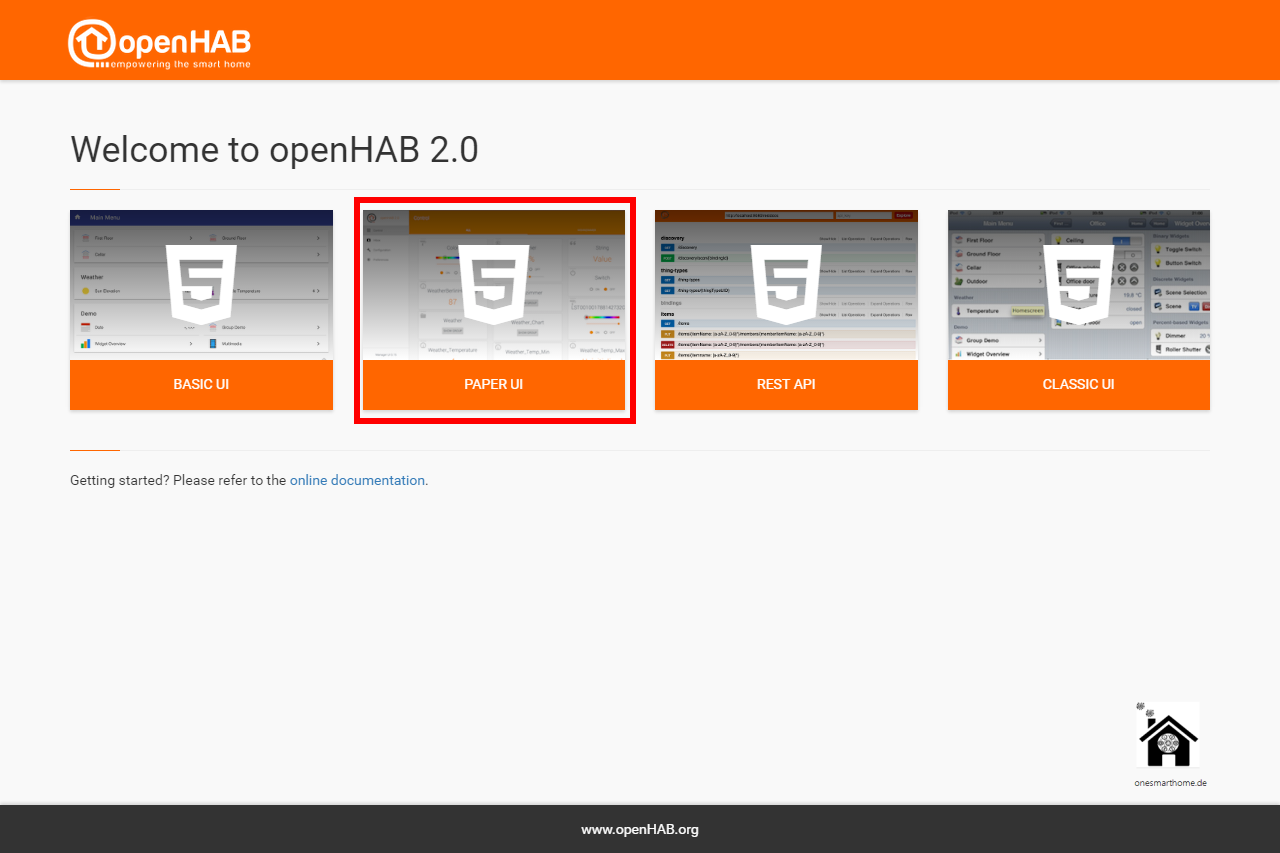
That has been the first step to get openHAB 2 running. Now you should read the post Smart Home openHAB 2 Configuration. Here you will get a basic overview how to create items, groups and sitemap.
There will be more post. If you do not want to miss any of them, use the newsletter.
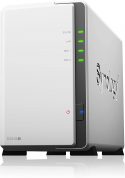
Synology DS218j NAS Disk Station, DDR3, 2-Bay, 512MB DDR3

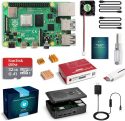
ABOX Raspberry Pi 3 B+ Complete Starter Kit with Model B Plus Motherboard 16GB Micro SD Card NOOBS, 5V 3A...